
Selling file downloads with instant delivery after payment
- We can deliver any file format, from PDF, ZIP, MP3 and more;
- We issue a unique, expiring download link for every purchase;
- We support unlimited downloads for sales and cover all bandwidth, no matter how large your files may be.
To sell downloadable products, simply upload your file to our system and we will automate delivery after payment is confirmed. Link expiration settings can be adjusted, but we recommend our default expiry allowing up to 5 download attempts within 120 hours.
- Download Attempts can be set from 1-9.
- (If you wish to provide unlimited downloads, click here for suggestions)
- We do not recommend setting your allowed download Attempts below 3, which would only raise your customer service workload, as there are many legitimate reasons why a buyer may need to attempt their download more than once.
- The time limit is optional and can be set from 0 (no time limit) to any amount of hours you wish.
Uploading Files
The method to upload a file differs slightly when adding a new product vs. editing an existing product.
When adding a new product:
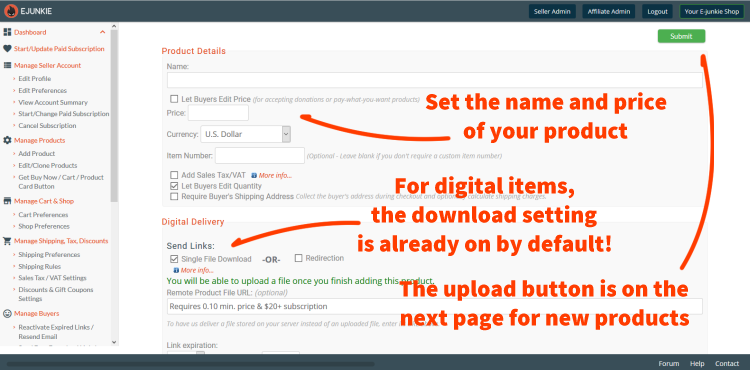
- In your E-junkie Dashboard go to Manage Products > Add Product;
- Under the section Digital Delivery > Send Links, tick the box for Single File Download (this is enabled by default for any new product);
- Finish setting up other aspects of the product;
- Click Submit to save the new product;
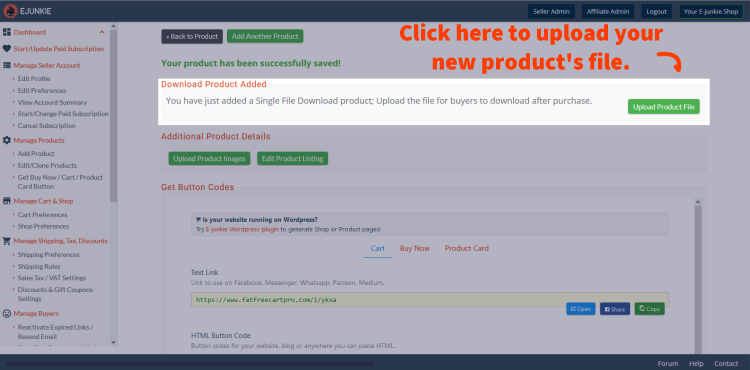
- The Upload Product File button will appear on the final screen where we present button codes for that product;
- An uploader box will appear, where you can click Choose File and then select your file;
- Once the upload completes, you can close the uploader box.
Adding or replacing a file for an existing product:
- In your E-junkie Dashboard go to Manage Products > View/Edit Products;
- Select a product and click View/Edit Product;
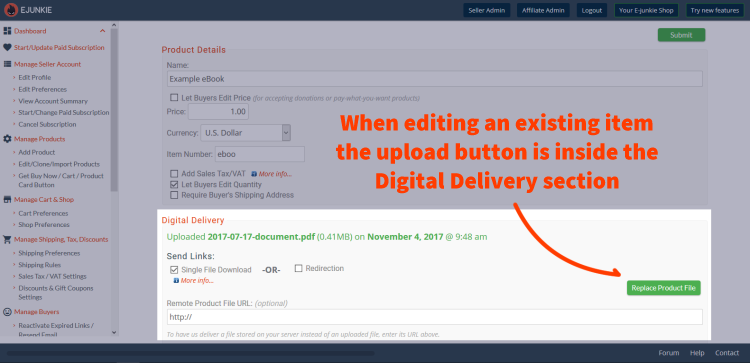
- Under the section Digital Delivery > Send Links, make sure the box for Single File Download is ticked;
- You will find the Upload Product File button nearby in that same section (this button would say Replace Product File if you had previously uploaded a file for the product, allowing you to replace the old file with a new one);
- An uploader box will appear, where you can click Choose File and then select your file;
- Once the upload completes, you can close the uploader box;
- If you change any other settings for the product, remember to click Submit to apply changes.
NEW! You can also go to Manage Products > Product Summary to upload a replacement file for multiple products more easily than editing each product's main settings individually. This can also be a convenient place to see which file is currently uploaded to each product and when they were last uploaded.
Tips
FAQs
Why is a minimum price required for Remotely Hosted Downloads? Do buyers need to install anything to download my product? What is the name of the file that is downloaded? Can the download link be used from anywhere? Where do I store my products? Can I store them on my own server? How secure is my product on your server? Which file formats can I upload? My product consists of multiple files; how can I upload that? Can I reactivate expired download links? I uploaded a file for a product which I want to remove; how do I do that? Can I prevent buyers from sharing or having extra copies of my file? Is there a maximum size limit for files I can sell with E-junkie? How can I provide unlimited free downloads? What is the direct URL to my download file from E-junkie's server? Can buyers download to mobile devices like tablets or smartphones?
Troubleshooting
File uploads fail or seem to get "stuck" Buyer is getting a "download link expired" error Buyers are not getting a download link in their email I received a notification that my product's remote download link is inaccessible Buyer is reporting slow/stalled downloads Unable to specify a Remote Product File URL for a product using Variants Buyer cannot open download, filename changed from .zip to .efw Sorry, this transaction can not be renewed any more, or Transaction ID Not Found
See Also
Creating products with options Selling Digital Content Selling package products that bundle multiple files Selling Generated Codes Redirection after payment Selling stored codes, registration/serial/license keys, phone cards, discount coupons Selling Tangible Goods Name-your-price products or donations