
STEP A: Enable shipping for your product(s)
When adding or editing a physical product in your E-junkie Dashboard:
- Tick the box Show advanced settings at the top of your product settings, then tick the box to Require Buyer's Shipping Address—this will trigger collection of a street address during checkout and (if configured) apply your shipping charges when a buyer adds this item to their cart;
- Enabling that setting will display the following shipping options (you can ignore these if you only want to collect an address without calculating shipping charges):
- Weight
- This should normally be the weight of each unit of the product, including any packing/padding material that would normally accompany it. If you are enabling Shipping to obtain a Buyer's Address without adding shipping charges, set product Weight to 0.00. This setting is only relevant to shipping rules using USPS/UPS rate lookups or "Price per weight unit" methods (see below for details on shipping rules).
- Package Type
- Select which type of container the product will be shipped in. *
- Packing Capacity
- State how many units of this product will fit in the selected Package Type. *
- Click Submit to save settings;
- If you haven't already, copy the product's Add to Cart button codes to paste into your product page (E-junkie Shipping Calculation will not work with Buy Now buttons).
Package Type & Packing Capacity
Different products set to ship in the same Package Type will consolidate those items into the fewest of that container possible, by sharing unoccupied Packing Capacity starting from the product with the lowest Capacity first—e.g., if Product A and B both ship in a Regular Box, with A having a Capacity of 2 and B having a Capacity of 3, then an order for 1 unit of A plus 4 units of B would factor just 2 Regular Boxes into the calculation, as 1 unit of B can occupy the 1 unit of vacant Capacity in A's Regular Box.
Tubes will also consolidate items into the fewest, largest Tube containers specified for items in the same order—e.g., if Product A ships in a Small Tube, and Product B ships in a Large Tube with a Capacity of 2, then an order for 1 unit each of A and B would ship together in just 1 Large Tube, as 1 unit of A can occupy the vacancy in B's Large Tube (and note you don't have to ship in literal tubes if you want to take advantage of this special consolidation behavior).
* NOTE: If you will be using our USPS rate lookups (see below for details) and expect to ship every order as a single parcel containing all items, make sure you configure every product to use the same Package Type, and specify their Packing Capacity as some absurdly high quantity that will never be reached (e.g. 9999).
See below in section 5. Define Packaging for further details about Packaging.
STEP B: Configure shipping calculation for your cart
Go to Manage Shipping & Tax > Shipping Preferences:
These settings work together with your Shipping Rules (see below) to calculate shipping charges.
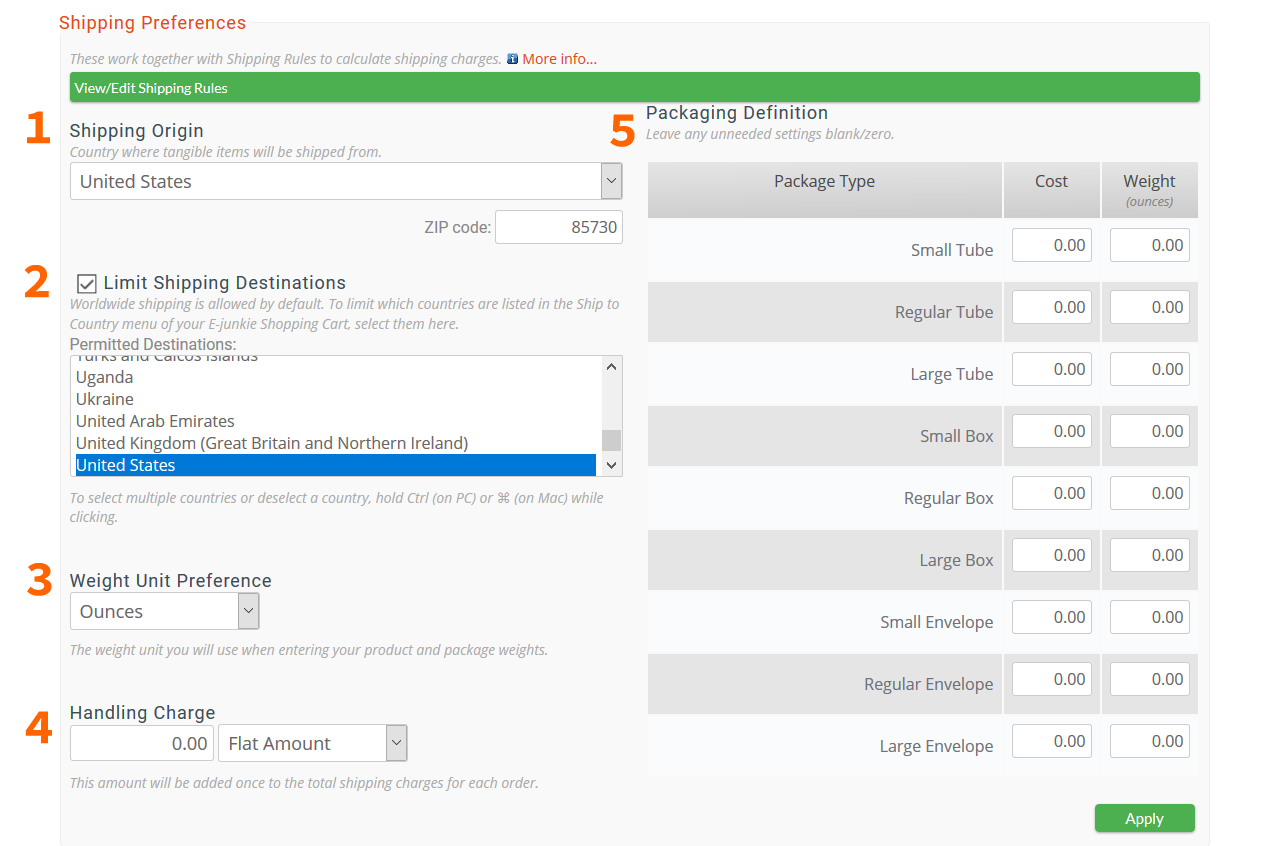
- Shipping Origin
Select your country, and US Merchants will also need to enter a ZIP code. - Limit Shipping Destinations
If you will ship to any country worldwide, leave this unchecked; otherwise, checkmark this setting to select specific countries where you will ship. To select more than one destination country or deselect any country, hold the Ctrl key (on a PC) or Command key (on a Mac) while clicking countries. - Weight Unit Preference
Select Ounces or Grams (and remember to specify all other Weight figures on this basis). - Handling Charge
This is added just once to the total shipping amount calculated for each order, can be a flat surcharge amount or a percentage boost (e.g., 10% Handling would multiply the calculated shipping amount by a factor of 1.10 to arrive at the final shipping charges applied to the order). - Define Packaging
Here you can define the Cost and Weight of various shipping containers:- Package Types (Large Box, Small Envelope, etc.)
-
Our Package Type names are just arbitrary labels that only factor into shipping-rate calculation; they do not necessarily have to correspond to how you actually pack and ship the order.
That said, there are a couple technicalities: the special Tubes consolidation behavior we explain above (near the end of Step A), and if you use our USPS rate lookups, Envelope types will obtain the USPS Envelope rate (rather than the Package rate) if the weight does not exceed the USPS limit for shipping in an actual envelope (but over that weight limit, they would just obtain the Package rate).
- Cost
- Can be a charge to pay for the empty container itself, or you can use this to define flat-rate shipping according to package type.
- Weight
- Normally the empty weight of the container itself, including any general packing/padding materials that would normally go inside/around it (not counting any packing/padding that is used for each product unit, which should be included in that product's Weight setting).
Click Apply to save any changes to the settings in this section.
Go to Manage Shipping & Tax > Shipping Rules:
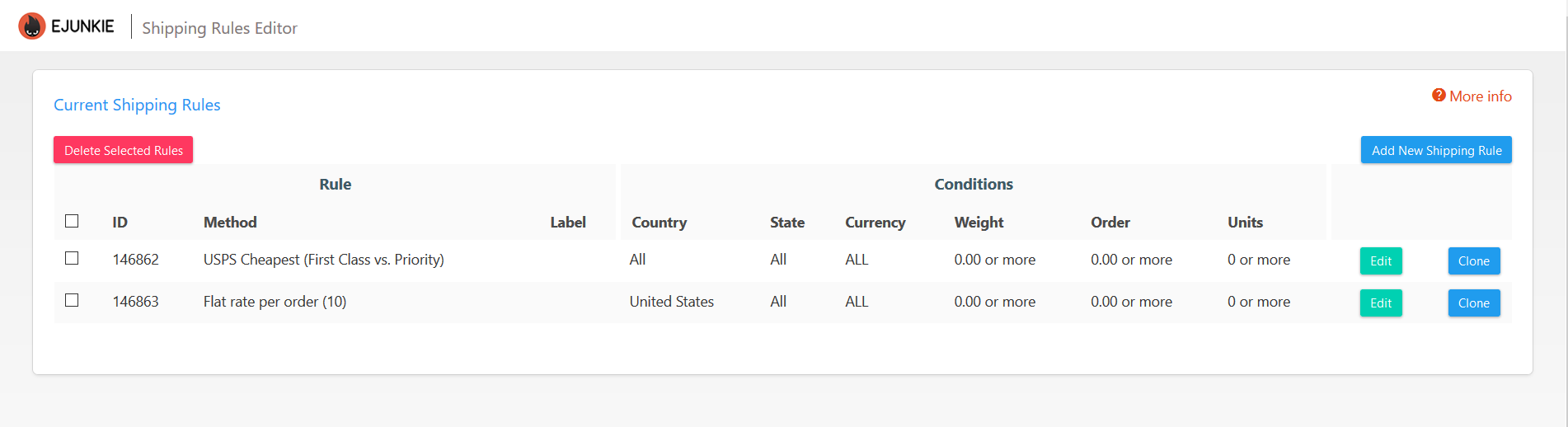
The Current Shipping Rules table shows existing shipping rules you have already defined (if any). Here you can choose to Edit or Clone any current rule.
If a buyer's order qualifies for more than one rule, your cart would show the buyer a choice of available shipping Methods and rates in their cart before checkout.
Add New Shipping Rule
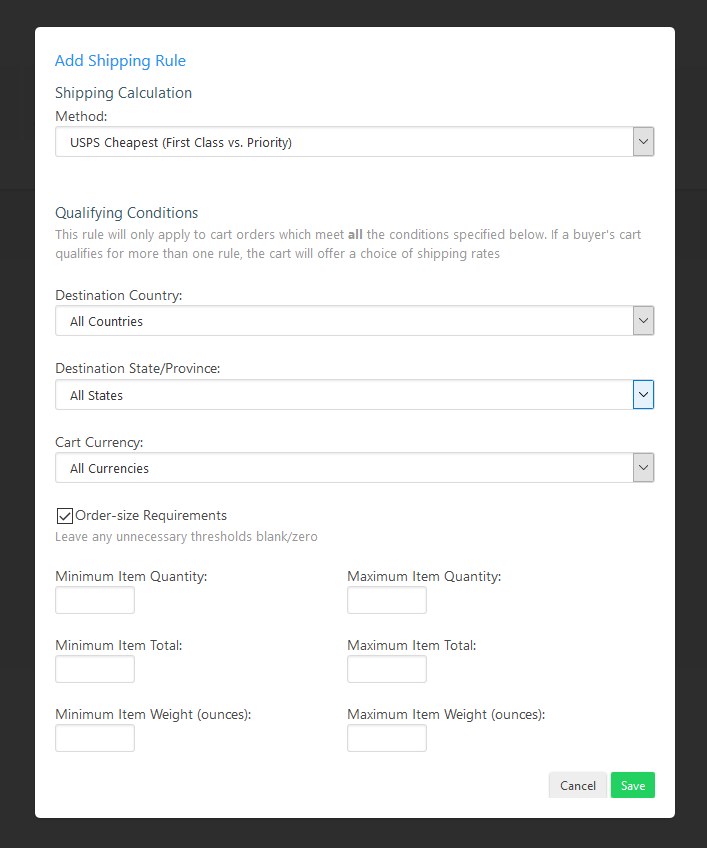
Select a Calculation Method for this new rule:
- USPS Cheapest (First Class vs. Priority): Queries US Postal Service for the First Class and Priority Mail rates and applies whichever is cheaper; *
- USPS Priority: Queries US Postal Service for the Priority Mail rate;
- USPS Express: Queries US Postal Service for the Express Mail rate;
- USPS Media Mail: Queries US Postal Service for the Media Mail rate;
- USPS Retail Ground: Queries US Postal Service for the Ground Advantage rate (formerly known as Retail Ground/Parcel Post/Standard Post);
- Flat rate per order: Lets you set a single flat shipping charge per entire order;
- Flat rate per item: Lets you set a custom flat rate per item ordered;
- Rate per unit weight: Lets you set a custom rate per ounce/gram of weight (see Weight Unit Preference above);
- Percentage of tangible item total: Shipping will be a percentage of the price total for all items with Shipping enabled in the buyer's order;
- Pickup: Lets you offer buyers a no-ship/no-charge option for local "will call" pickup orders; note this also waives any Handling or Package Type Cost(s) that would otherwise normally apply. This free-pickup option will also appear last among the shipping rates offered to buyers in your cart, whereas normally the cheapest option would be listed first and pre-selected by default.
* NOTE: USPS Cheapest effectively means "First Class if available, or Priority if not." USPS no longer offers First Class parcel shipping within the US, so this rule is effectively equivalent to USPS Priority for US buyers. If you wish to offer non-US buyers the choice of Priority whenever First Class is also available, add one rule using USPS Cheapest and another rule using USPS Priority.
Qualifying conditions:
OPTIONAL: You can just leave these settings alone (blank or 0) if you want to offer the chosen rate to all buyers for all orders.
Otherwise, you can define here any conditions an order must satisfy to qualify for the rule you are creating. If you choose to enable Order-size Requirements, note that the Min./Max. Item Total thresholds apply to the total, combined price of all shippable items in the buyer's cart before any Discounts or Sales Tax are applied.
Rules for specific locations will override those for more-general locations—i.e., you can regard rules for All Countries as meaning "international/rest of the world", as they would apply to all your chosen Shipping Destination countries that don't have a specific rule of their own—e.g., if a buyer specifies United States as their location in the cart, and their order qualifies for any rules you'd defined for Country:US, that would override any other rules for Country:All (and likewise, rules defined for any specific state would override rules for Country:US State:All).
Click Add Rule to save a new rule, which will then be added to your Current Shipping Rules table.