
When an order has been completed we will generate a unique Thank You Page for that transaction, which can include the unique and expiring download links created for that sale.
Because we make a unique page for each sale there is no single address for your Thank You Page, but if you would prefer to use a static page of your own that can be set in the Edit Preferences screen, under the Common Thank You Page URL field. We don’t recommend doing that if you want to deliver any digital products, though! We cannot add unique information such as download links to a page that exists outside of our system.
-
If you are using PayPal Payments Standard or PayPal Payments Pro Express Checkout the buyer will need to manually click through the checkout process to reach their Thank You Page. PayPal’s checkout is the most commonly used payment method so this applies to most orders.
-
Card based checkout methods such as Stripe, Authorize.net, PayPal Payments Advanced, PayPal Payments Pro Direct Payment, PayPal Payflow Link or Pro or 2Checkout will automatically redirect to your thank you page after checkout.
Displaying a Logo on your Thank You Page
If you upload a logo via the Edit Preferences screen it will be displayed at the top of your Thank You Page. We will also send the logo to any checkout payment pages that support that, such as PayPal.
Using a Thank You Page on your own site
You may enter the address of your own in the Common Thank You Page URL field on the Edit Preferences screen. See more about redirecting buyers to a page of your own on the Redirection help page.
Customizing Your Page
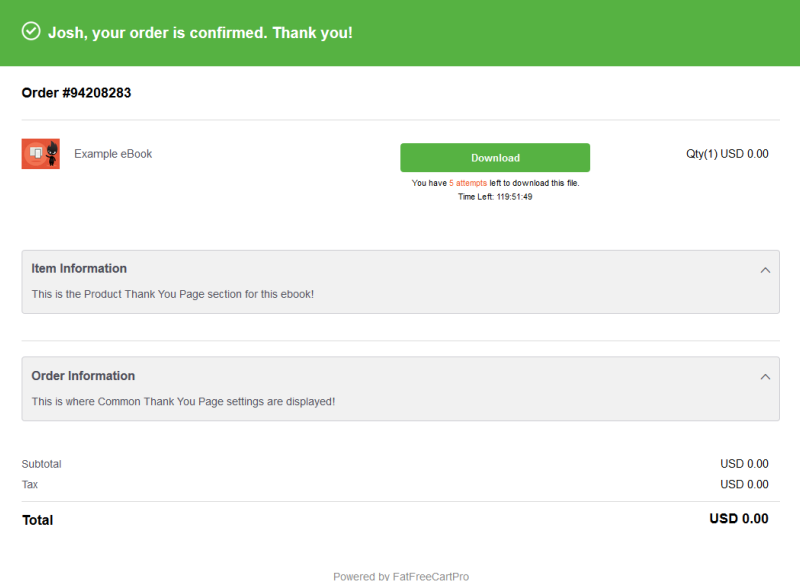
There are two places where you can add additional customization for your Thank You Pages. The Common settings display general information that will be included for every order. The Product settings will only display when the related product has been purchased.
While our emails deliver Common and Product messages separately, Common and Product Thank You Page settings are displayed together on the same page. The Thank You Page is the best place to put detailed instructions and information that you want to pass on to your buyer, as the contents of this page won’t trip up any email spam filters.
In addition to normal text you may enter HTML code, Javascript and even CSS in your Thank You Page. Be sure to format your text with HTML tags -- for example, you can enter the paragraph tag <p> to separate lines of text.
Common Thank-you Page HTML
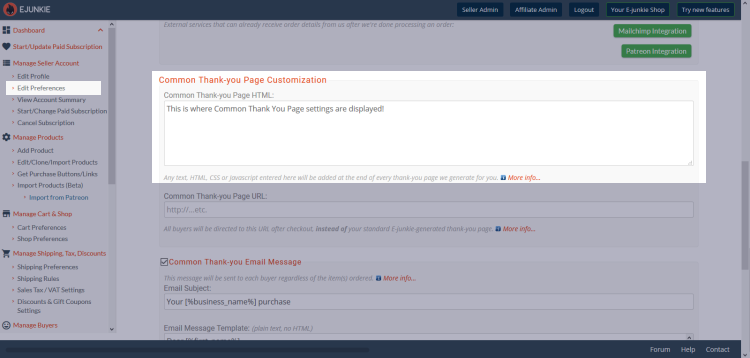
Go to Manage Seller Account > Edit Preferences, then scroll down to the Common Thank You Page HTML field.
Any text or HTML that you enter here (including STYLE tags for CSS or SCRIPT tags for JavaScript) will be inserted at the end of every Thank-you Page we generate for you.
If you have any special tracking code that needs to be added to your "conversion" pages, you can paste that here; however, note that we can automate the placement of Google Analytics and Facebook Pixel code for you, so you may not need to paste that code in here manually—see further details on our tracking help page.
Template variables you can use in the Common Thank-you Page HTML field
[%first_name%]= Buyer's First Name
[%last_name%]= Buyer's Last Name
[%payer_email%]= Buyer's PayPal Email
[%txn_id%]= Transaction ID
[%ej_txn_id%]= Payment confirmation ID shown to affiliates; this can also be used to provide an "invoice" number that is always sequential but not necessarily consecutive (i.e., this ID will always be a higher nubmer for later orders, but not going by increments of 1 for each of your orders)
[%auction_buyer_id%]= Auction's Buyer ID [for eBay sales only]
[%shipping_name%]= Shipping recipient's name [if applicable]
[%address%]= Shipping Address [if applicable]
[%city%]= Shipping City [if applicable]
[%state%]= Shipping State [if applicable]
[%zip%]= Shipping ZIP/Postal Code [if applicable]
[%country_full%]= Shipping Country [if applicable]
[%country%]= Shipping ISO Country Code [if applicable]
[%total%]= Item subtotal (excludes shipping & sales tax)
[%fee%]= Payment Processor's Fee [if available]
[%affiliate_share%]= Affiliate's commission [if applicable]
[%affiliate%]= Affiliate's email [if applicable]
[%currency%]
[%invoice%]= Buyer's cart ID or Buy Now invoice ID
[%tax%]= Sales tax [does not include VAT]
[%country_digital%]= VAT place of supply for digital items
[%country_tangible%]= VAT place of supply for non-digital items
[%vat_digital%]= Order subtotal of VAT calculated for digital items
[%vat_tangible%]= Order subtotal of VAT calculated for non-digital items
[%shipping%]= Shipping + Handling
[%gross%]= Order total
[%p_date%]= Payment Date, e.g. January 1, 2009
[%c_date%]= Current Date, e.g. January 1, 2009
[%c_time12%]= Current time MST in 12 hour format, e.g. 7:07 pm MST
[%c_time24%]= Current time MST in 24 hour format, e.g. 19:07 MST
[%custom%]= If you passed a custom variable in the button code
Product Thank-you Page HTML
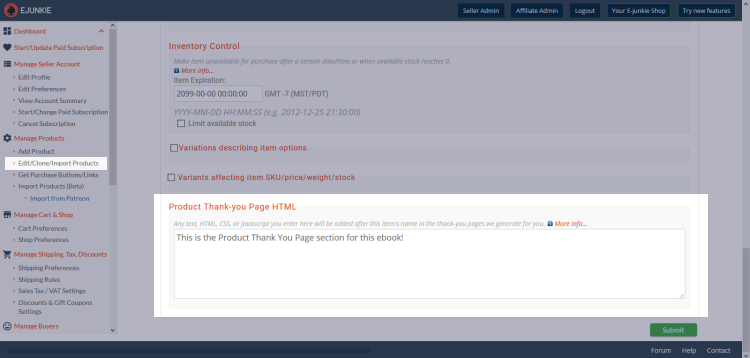
While adding/editing a specific product, tick the box to Show advanced settings a the top, then scroll down to the Product Thank You Page HTML field.
Whatever you enter here will be inserted in your E-junkie-generated thank-you pages after the item's name, and only when this specific item is ordered. You can enter any text or HTML (including STYLE tags for CSS or SCRIPT tags for JavaScript) you wish to insert for sales of that product.
Template variables you can use in the Product Thank-you Page HTML field
- Order Specific
[%first_name%]= Buyer's First Name
[%last_name%]= Buyer's Last Name
[%payer_email%]= Buyer's PayPal Email
[%txn_id%]= Transaction ID
[%custom%]= If you passed a custom variable in the button code- Item Specific
[%item_name%]= Item Name
[%item_number%]= Item number in E-junkie admin
[%codes%]= key/registration/PIN code issued using Send Codes feature
[%expiry_hours%]= Hours until download link expires
[%max_downloads%]= Maximum download attempts permitted
[%item_price%]= Price of the item
[%sale_price%]= Price at which the item was sold, which can be different from the item price in case buyer used your discount code or if the item was sold in an auction etc.
[%currency%]
[%quantity%]= Quantity of the item sold
[%vat_country%]= VAT place of supply for the item
[%vat_rate%]= VAT rate applicable for the item's place of supply
[%auction_item_number%]= If this was an eBay listing
[%sku%]= SKU of the particular item Variant sold
[%downloads%]= Number of downloads for this item so far for this sale
[%category%]= If you have created a listing for this product in E-junkie store, then the category it's listed in
[%on0%]= Option 1 Name using Variations
[%os0%]= Option 1 Value using Variations
[%on1%]= Option 2 Name using Variations
[%os1%]= Option 2 Value using Variations
[%on2%]= Option 3 Name using Variations
[%os2%]= Option 3 Value using Variations
[%o1_title%]= Option 1 Name using Variants
[%o1%]= Option 1 Value using Variants
[%o2_title%]= Option 2 Name using Variants
[%o2%]= Option 2 Value using Variants
[%o3_title%]= Option 3 Name using Variants
[%o3%]= Option 3 Value using Variants
How to view your page
Placing a free order from your own account, with a product priced at 0.00 or by creating your own personal test discount, will generate a normal Thank You Page just like we’d create for any order.
If you have already placed an order once before you can view it in your Transaction Log screen, just click on the Transaction ID there and we will generate the page according to your current settings so that you do not need to repeatedly order from yourself to see how your latest updates look.
Clicking the name of a product from within your Transaction Log will display a page that only contains that particular item. This page will display its Product settings plus your Common settings, but not any settings included with a different item on the order. This is the same page that will be displayed by the [%download_link%] tag in that item’s Product Thank You Email.
Create and manage an affiliate program Selling Ebooks and PDF Stamping Sending Updates and Newsletters Customize Thank-you Email Discounts and Sales Sales Tracking with Google Analytics, AdWords, Facebook Pixel, etc. Charging Sales Tax and VAT Integration with custom scripts and third-party services Transaction Log Block Buyers/Transactions Shipping and Packaging calculator Inventory Management Webhook integration with custom scripts and third-party services